Manual
Every feature of ModusCycler, eScalator and modes·explorer — with screenshots, for PC and smartphone. Tip for PC users: via Print → Save as PDF this page turns into an up-to-date PDF at any time.
The screenshots show the German interface — the app itself is fully available in English.
Three tools, one system
All three apps spring from the same idea: don't memorize modes — understand them and use them right away. Each tool has its own role; together they form a complete learning path from the first scale shape to modal composition.
eScalator — the foundation
Delivers the scales: all seven positions of the major scale as a Kiltz/CAGED and 3NPS reference, printable, in every key. And it shows how the positions connect — with the Transitions view you learn to slide fluidly from position to position instead of living inside one box.
modes·explorer — the course
Teaches you step by step how to play any scale in any mode: choose the starting scale, shift it to the interim base, find the root inside the shape, feel the mode. Four clicks that turn 35 memorized fingerings into a single understood system.
ModusCycler — the complete work
Contains both — and goes further: you understand which modes live inside your chord progressions, colour progressions modally for composing, and improvise over entire progressions efficiently with the right modes. With jam backing, worksheet printing and everything in between.
Contents
1 · ModusCycler: overview & sticky bar
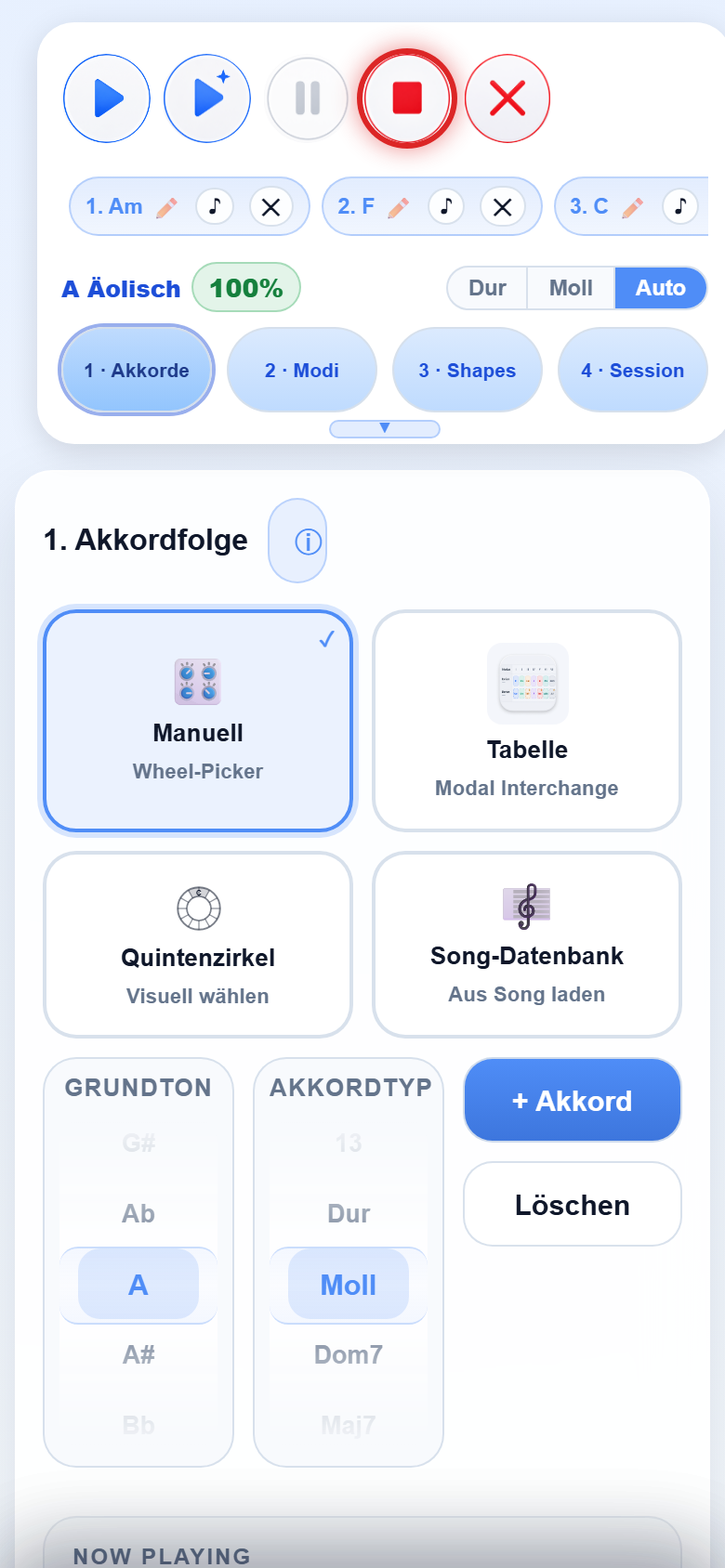
ModusCycler runs in the browser at app.moduscycler.com and as an app for Android and iOS. The interface is organized into four sections, reachable via the pills 1 · Chords 2 · Modes 3 · Shapes 4 · Session — on the phone you simply scroll top to bottom through the same sections.
The sticky bar
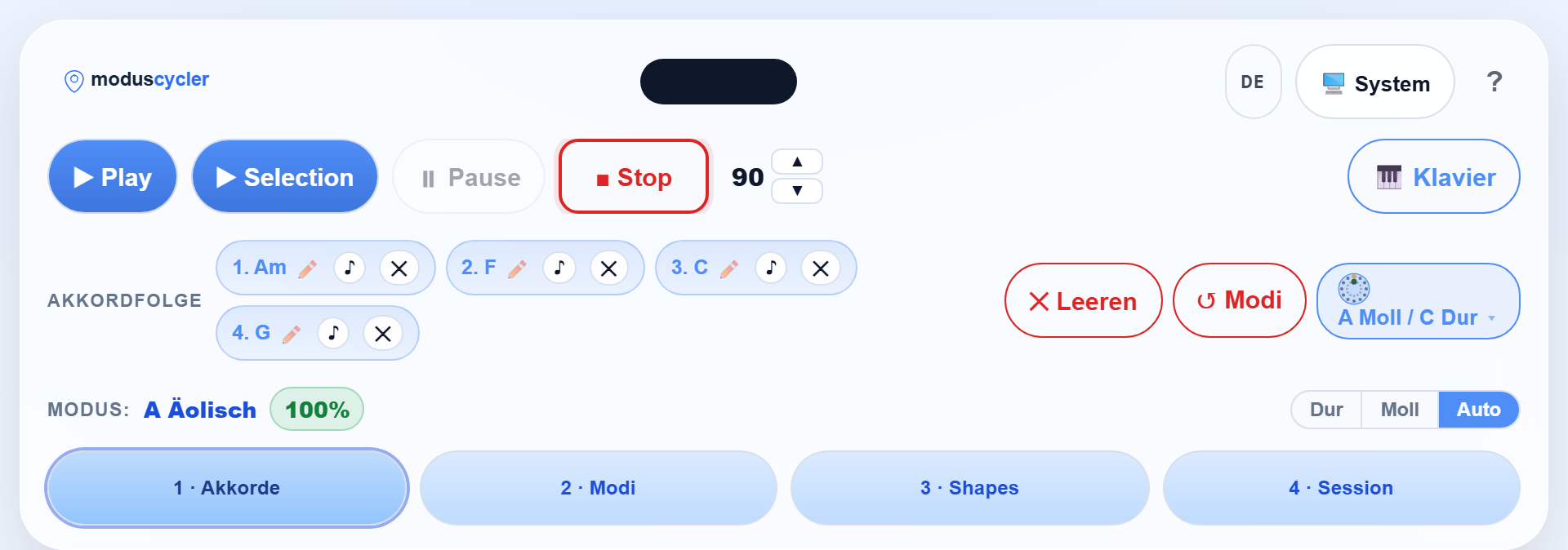
- Transport: ▶ Play loops the chord progression, Selection plays only the current selection, plus Pause and Stop. Next to it the tempo (BPM) with ▲/▼.
- Chord progression: each pill shows its chord with the assigned mode (e.g. "1. Am — A Aeolian"). ✏️ opens the editor, ♪ plays the single chord, ✕ deletes it. Clear removes everything, Modes recalculates.
- Key badge (e.g. "A minor / C major"): shows the detected key and opens the mini circle of fifths for transposing the whole progression.
- Instrument switch (piano), language (six languages in rotation), theme (light/dark/system) and ? for the guided tutorial.
The narrow strip at the top edge of the sticky bar is the beat indicator: during playback the beats blink along (beat 1 in red).
2 · Section 1: building a chord progression
Everything starts with a chord progression. Section 1 offers four input paths — as tiles at the top of the section:
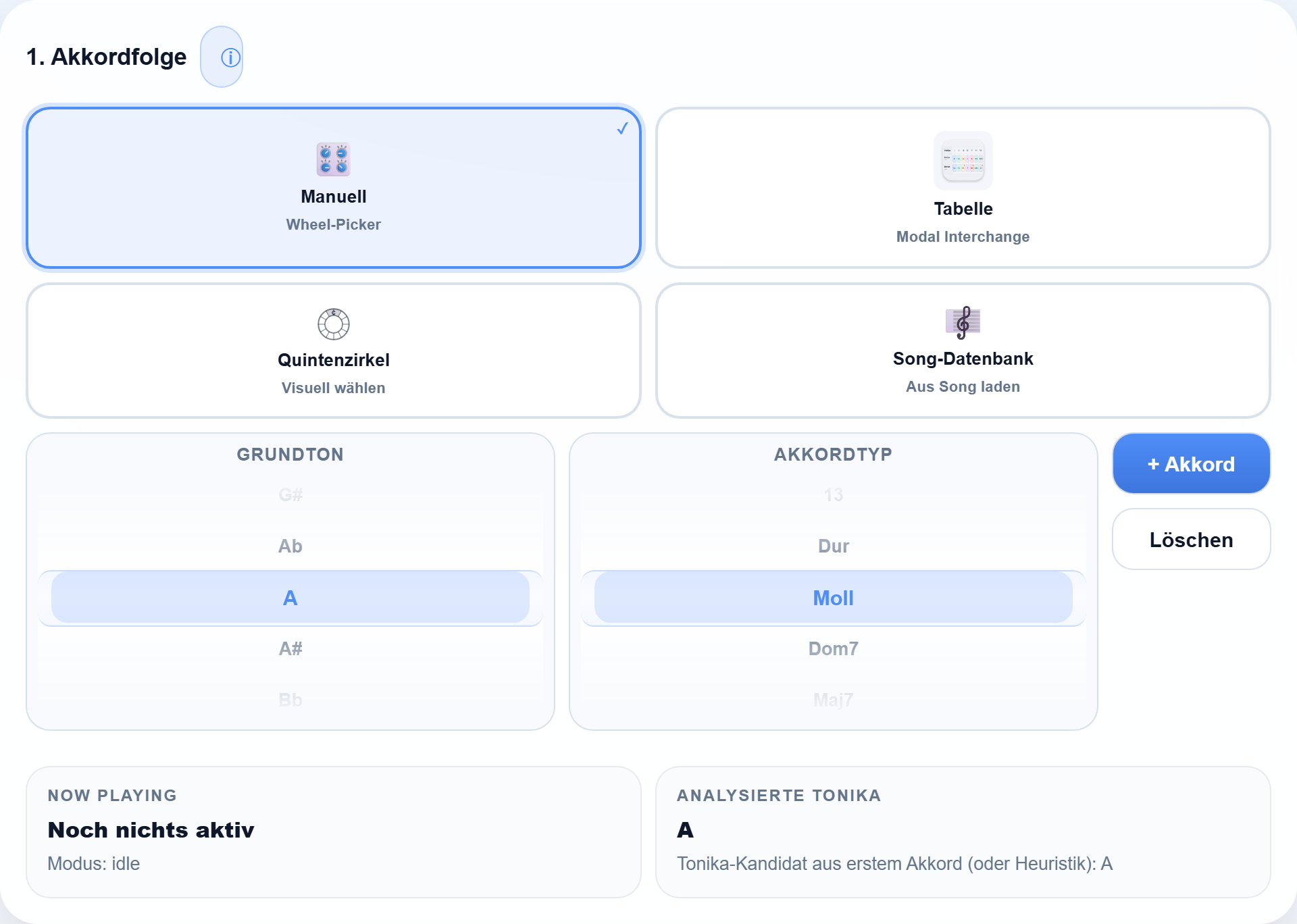
- Manual (wheel picker): choose root and chord type on the wheel — from major/minor to Dom7, Maj7, 13 and more — then + Chord.
- Circle of fifths: pick chords visually from the circle. Related chords sit next to each other — ideal for building coherent progressions.
- Table (modal interchange): the borrowed-chord table shows which chords can be "borrowed" from parallel modes — the direct route to modal colours.
- Song database: load ready-made progressions of well-known songs as a starting point.
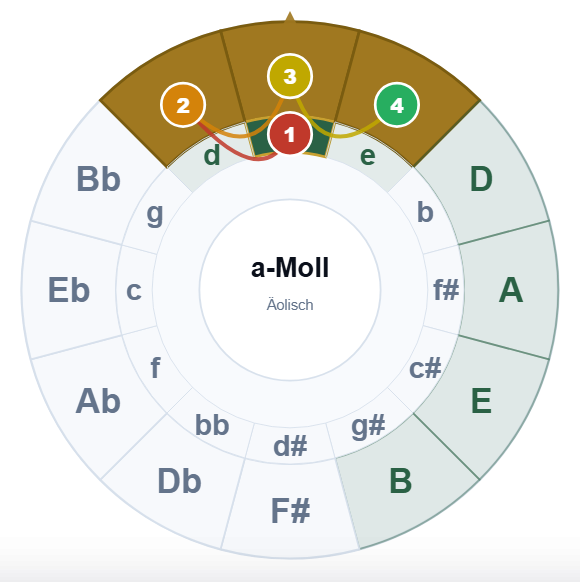
Below the input, Analyzed tonic continuously shows which root the app derives from your progression. The Major | Minor | Auto switch sets whether the display uses major, minor or automatic detection. Enharmonic spelling (♭ or ♯) always follows the chosen key — D♭ major shows D♭, E♭, F instead of C♯, D♯.
Key logic: the first chord anchors the key
ModusCycler derives the key from the first chord of the progression — that keeps the analysis stable and easy to follow. But when you replace or delete the first chord of an existing progression (for instance while experimenting in the modal-interchange table), re-anchoring automatically would often be wrong: usually you mean a borrowed chord within the old key, not a modulation.
So the app asks you at exactly that moment: "Stay in the key" reads the new chord as a borrowed chord within the current frame and visibly pins the key (📌 on the key badge in the sticky bar) — "Change key" reads the whole progression from the new centre from now on; analysis, global modes and the MI table follow. The pin remains until you clear the progression, load a song, or later decide to switch after all.
3 · Section 2: modes & approaches
Section 2 answers the core question: Which mode fits my progression — and why? Four tiles (matching section 1's style) choose the approach:

- 🌐 Global: one mode for the whole progression. The app scores all candidates and shows the best one with a percentage (e.g. "A Aeolian · 100%"). Right for most situations.
- ✨ Smart: like Global, but the app suggests substitutions in fitting places that add colour to your improvisation.
- 🧩 Flexible: the master class — a separate mode for each chord. Every chord pill gets its own assignment, which you can override manually.
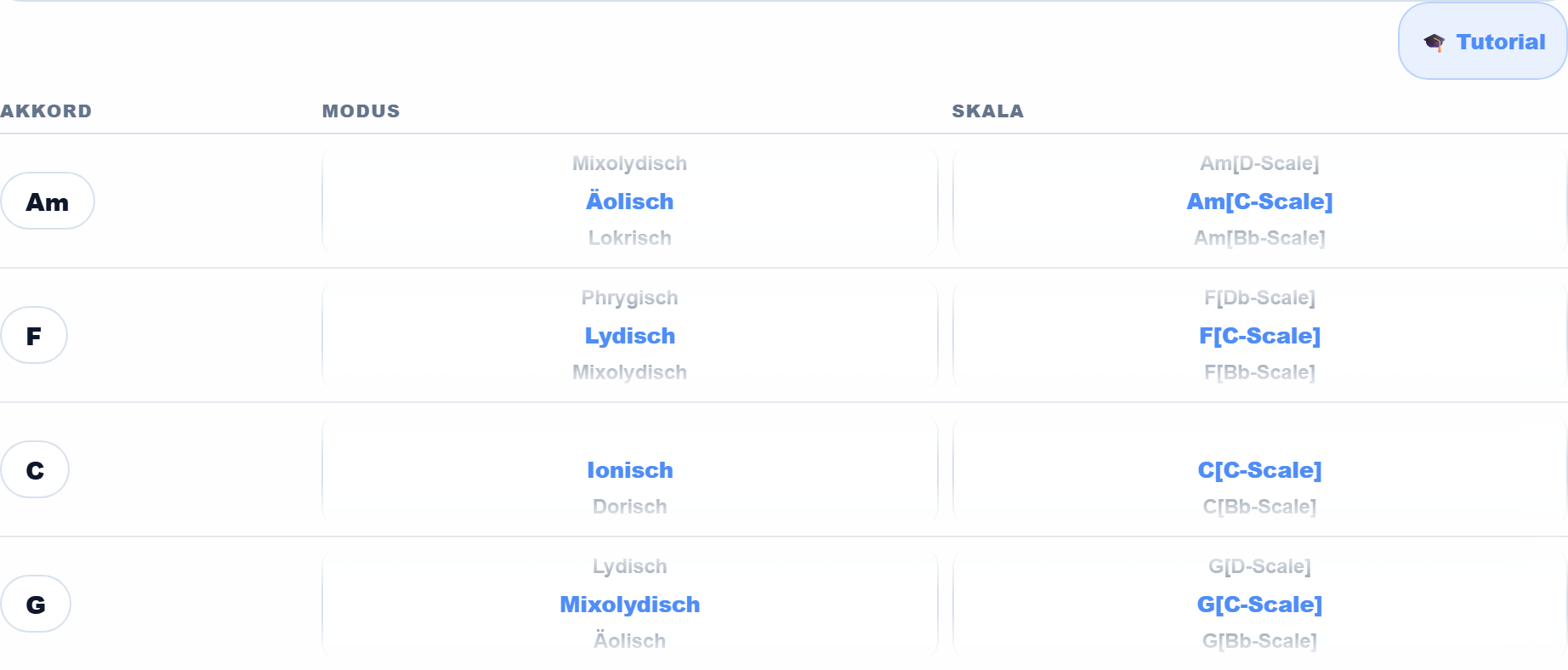
- 🃏 Cheating: the compact cheat sheet — two linked wheels per chord: church mode ↔ short form ("Am [F scale]"). Cheating automatically uses the Flexible approach.
At the top, four tiles choose the view — it applies to all chord tiles:
Scale-change combinations: Below the cheat sheet, three tiles show every mode combination of your progression, sorted by improvisation effort — No change (one scale family for everything), One change (there and back) and Two changes. Changes are counted in the loop; the boundary from the last chord back to the first counts too. Every combination carries its slide formula in the label (e.g. "C·C·Bb·Bb −2↔" = 2 frets down and back, same shape). One turn of the wheel sets the modes of all chords at once.
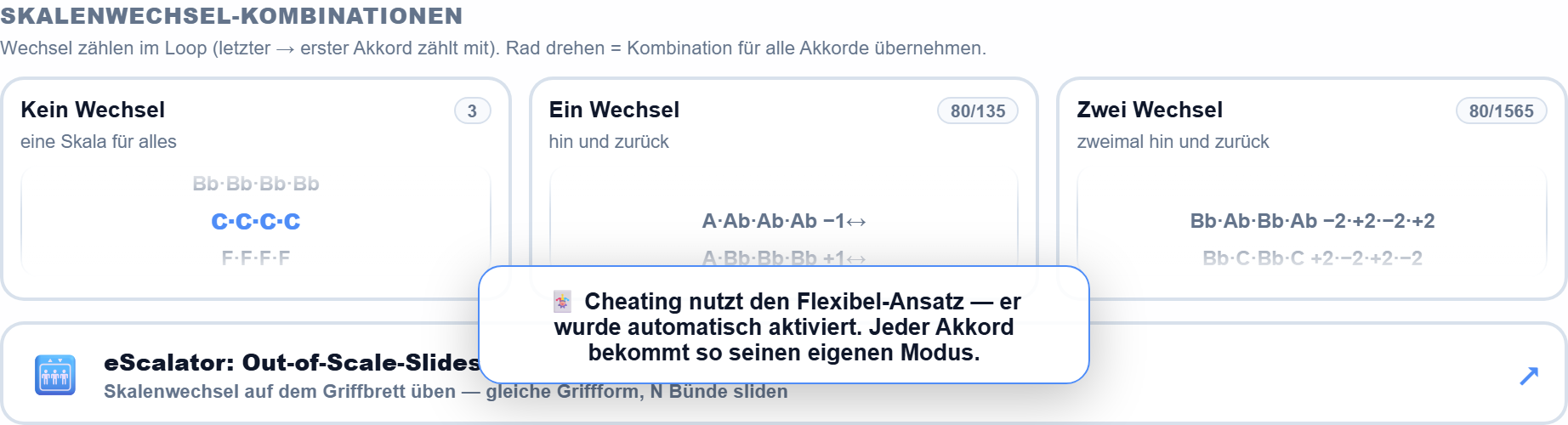
The 🛗 eScalator: Out-of-Scale-Slides tile below opens the eScalator full-screen and hands over the scale families of your combination — there you see the scale change as a slide on the fretboard (chapter 7).
A * next to the mode marks equivalent alternatives. For every mode the app shows the character note — the one note that makes the mode audible — plus avoid hints. Deep dives: the circle-of-fifths module with explanations and the modal-interchange table right in the app.
4 · Section 3: shapes & views
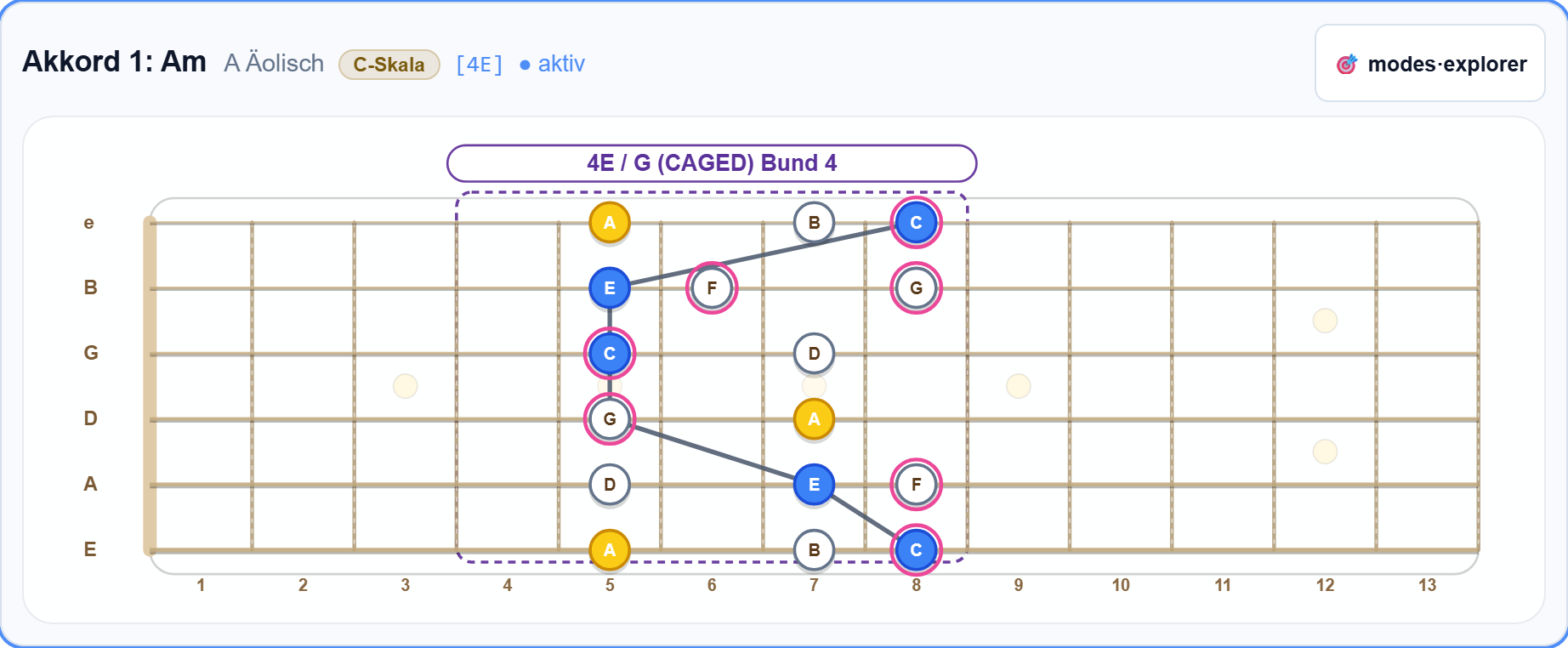
Section 3 translates mode + chord into something playable. For each chord you get a tile with the matching scale in the best Kiltz/CAGED position — the progression deliberately stays in one calm hand position instead of jumping across the fretboard for every chord.
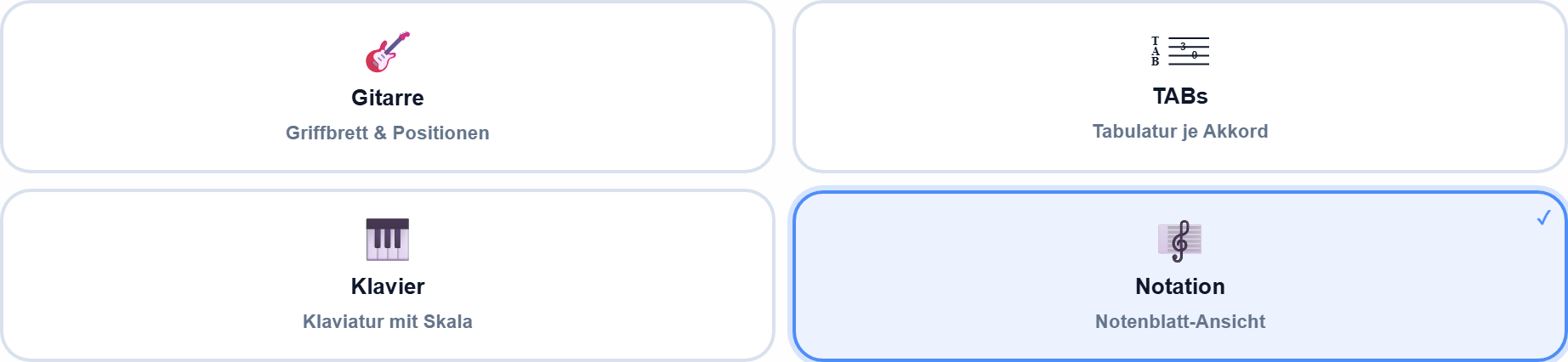
At the top of the section you switch the view — it applies to all chord tiles:
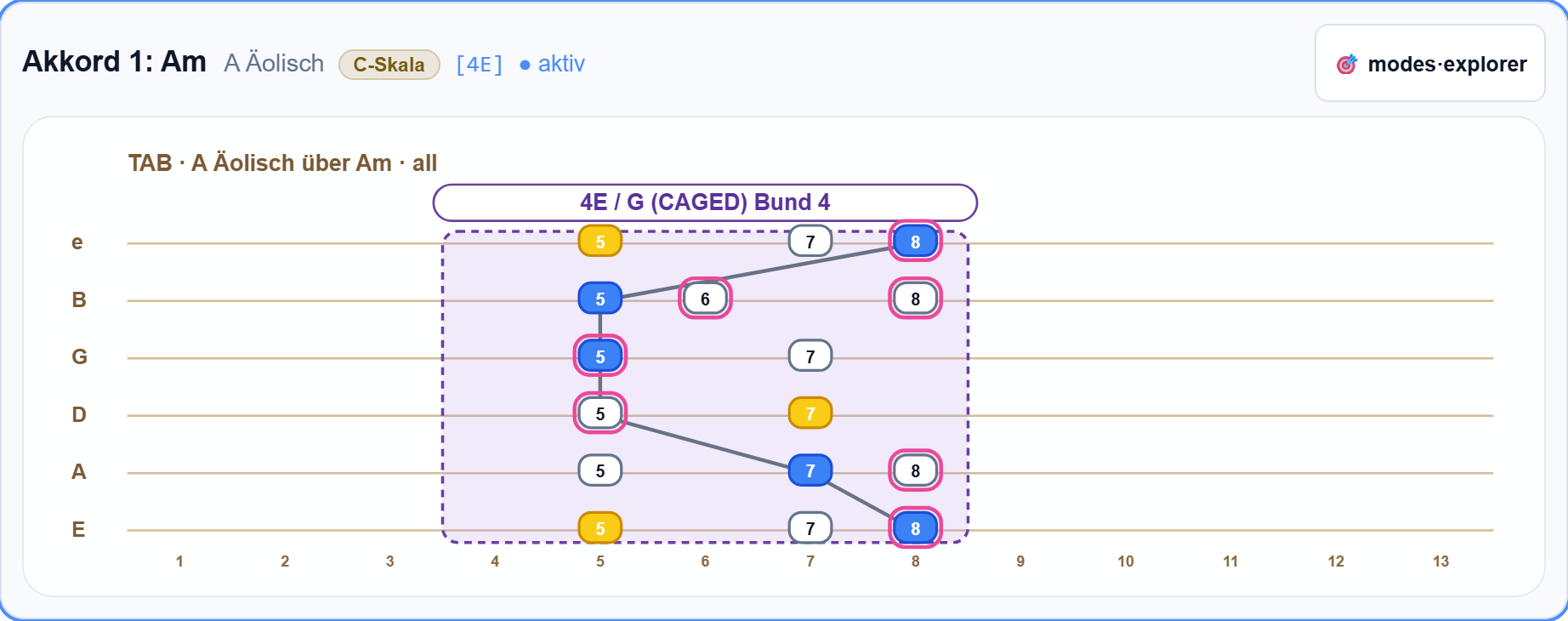
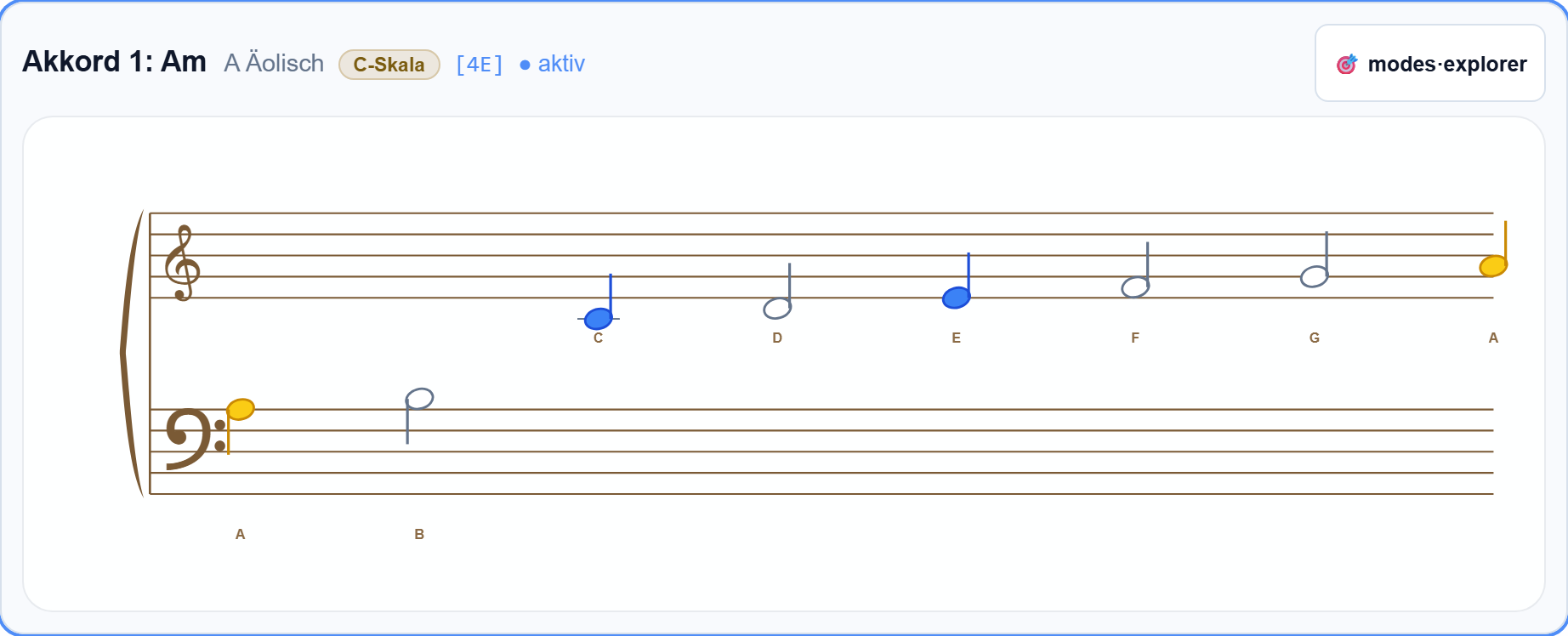
- 🎸 Guitar / TABs / 🎹 Piano / 🎼 Notation: four representations of the same scale — Piano shows the notes on the keyboard (horizontal or vertical). Since the redesign, the 🃏 cheat sheet lives in section 2 (chapter 3).
- Positions: either only the best position or all positions.
- 🎯 modes·explorer on every tile: opens the embedded course right for that chord (see chapter 8).
- ⛶ Fullscreen: all scale diagrams as a stage view with a mini transport — for practicing and the rehearsal room.
5 · Printing, saving & export

Print worksheet / PDF produces a clean practice sheet of your entire progression — the browser print dialog allows "Save as PDF".

- Save internally: offline in the browser/device — including mode assignments and the jam-session arrangement.
- Export / Load: save as a .json file and load it on any other device — that's how a song travels from PC to phone.
6 · Section 4: jam session
The jam session turns your chord progression into a practice backing band. When you open it (pill 4 · Session) the sticky bar gets an orange frame and five channel chips: Chords · Tick · Drums · Bass · Instrument.
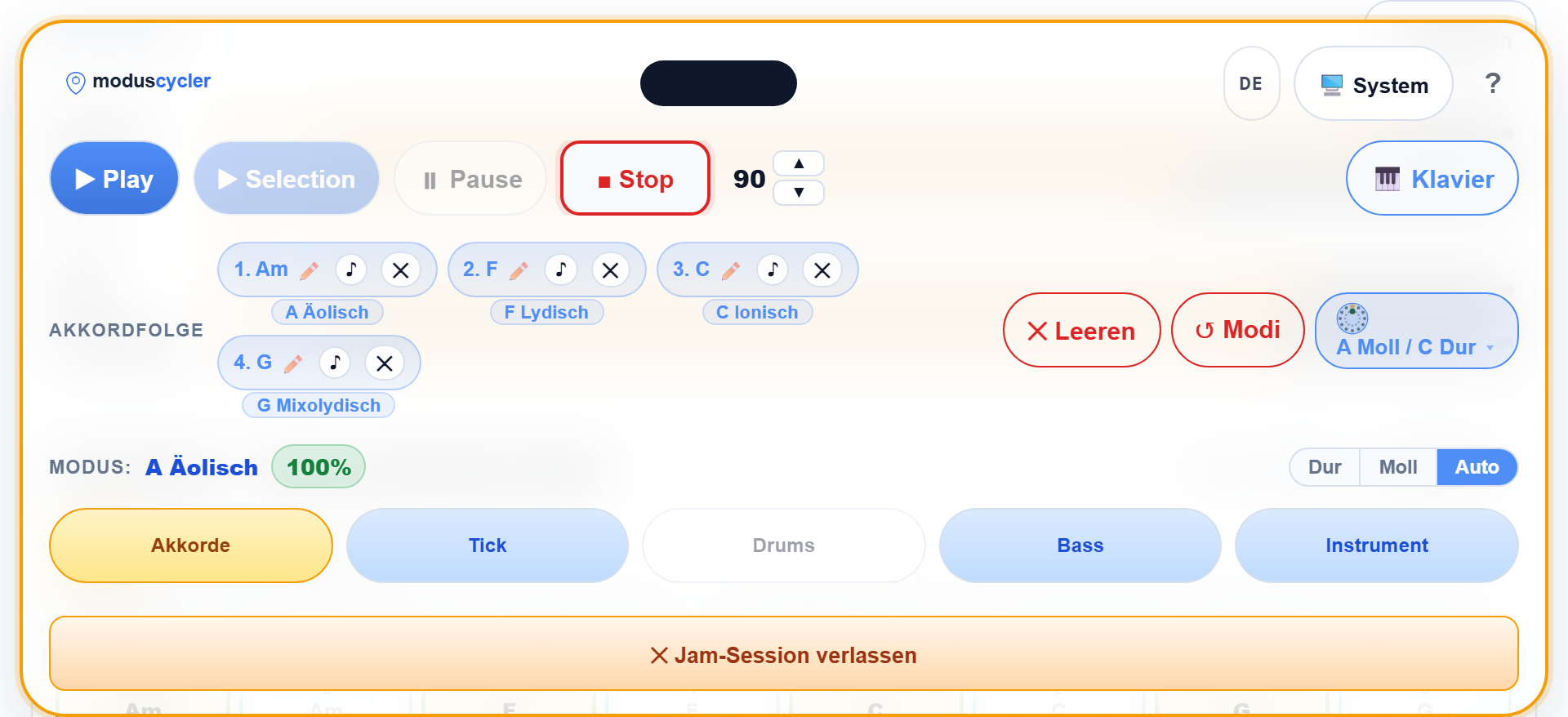
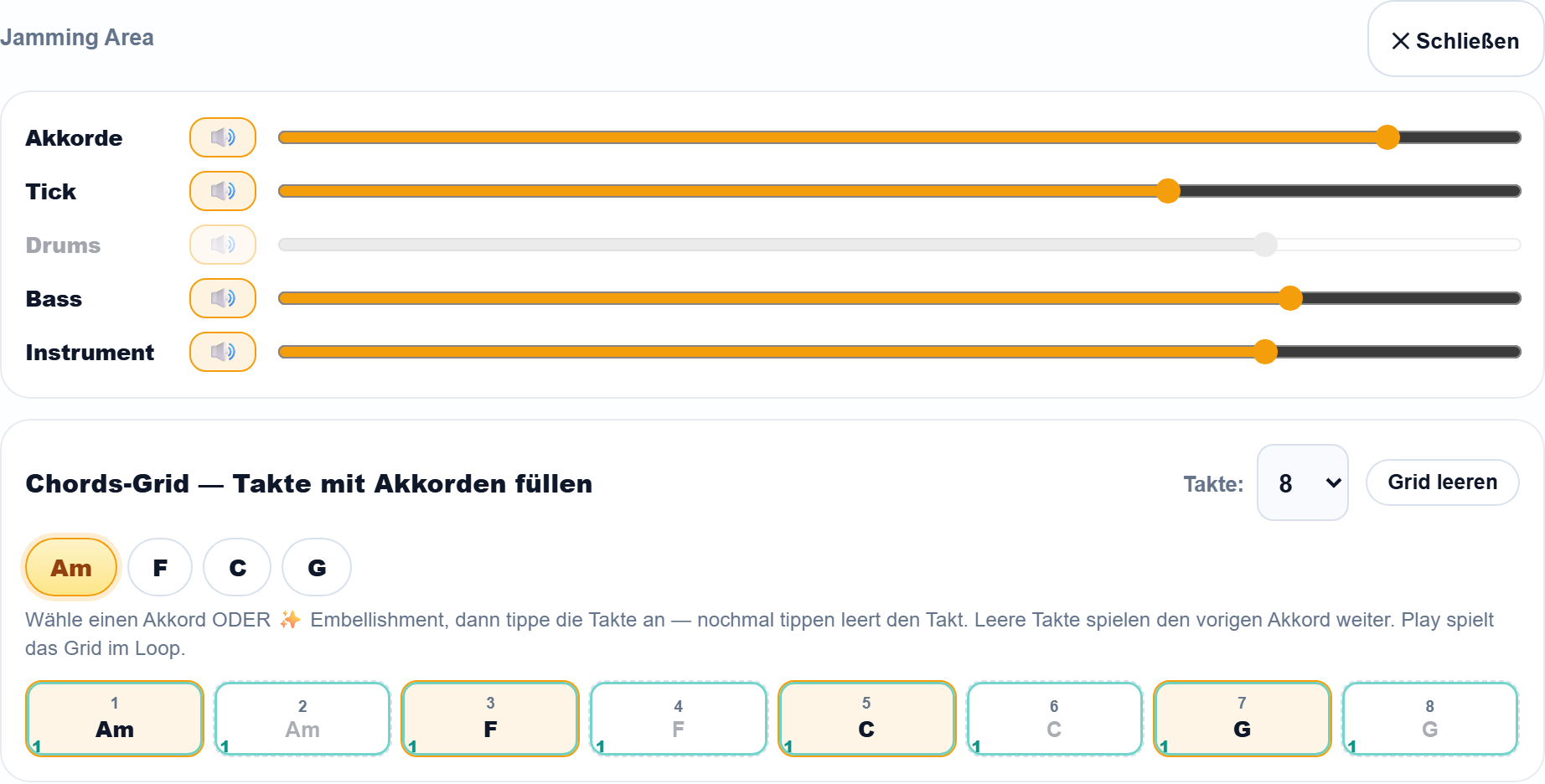
The heart is the grid: 4–32 bars that you fill with chords. On first open it fills itself from your progression (two bars per chord); empty bars keep playing the previous chord. The active chip decides what you "paint":
- Chords: tap a chord, then tap bars — tapping again clears the bar.
- Instrument (✨): piano embellishments per bar — from curated patterns or generated via 🎲 by the built-in randomizer.
- Bass (🎸): an independent bass line as a second voice, with a selectable bass sound (rock, jazz, slap, cello or NuMetal picked bass).
- Tick: the metronome — always runs in sync with the app's bars and drives the beat indicator. Drums are planned as an expansion.
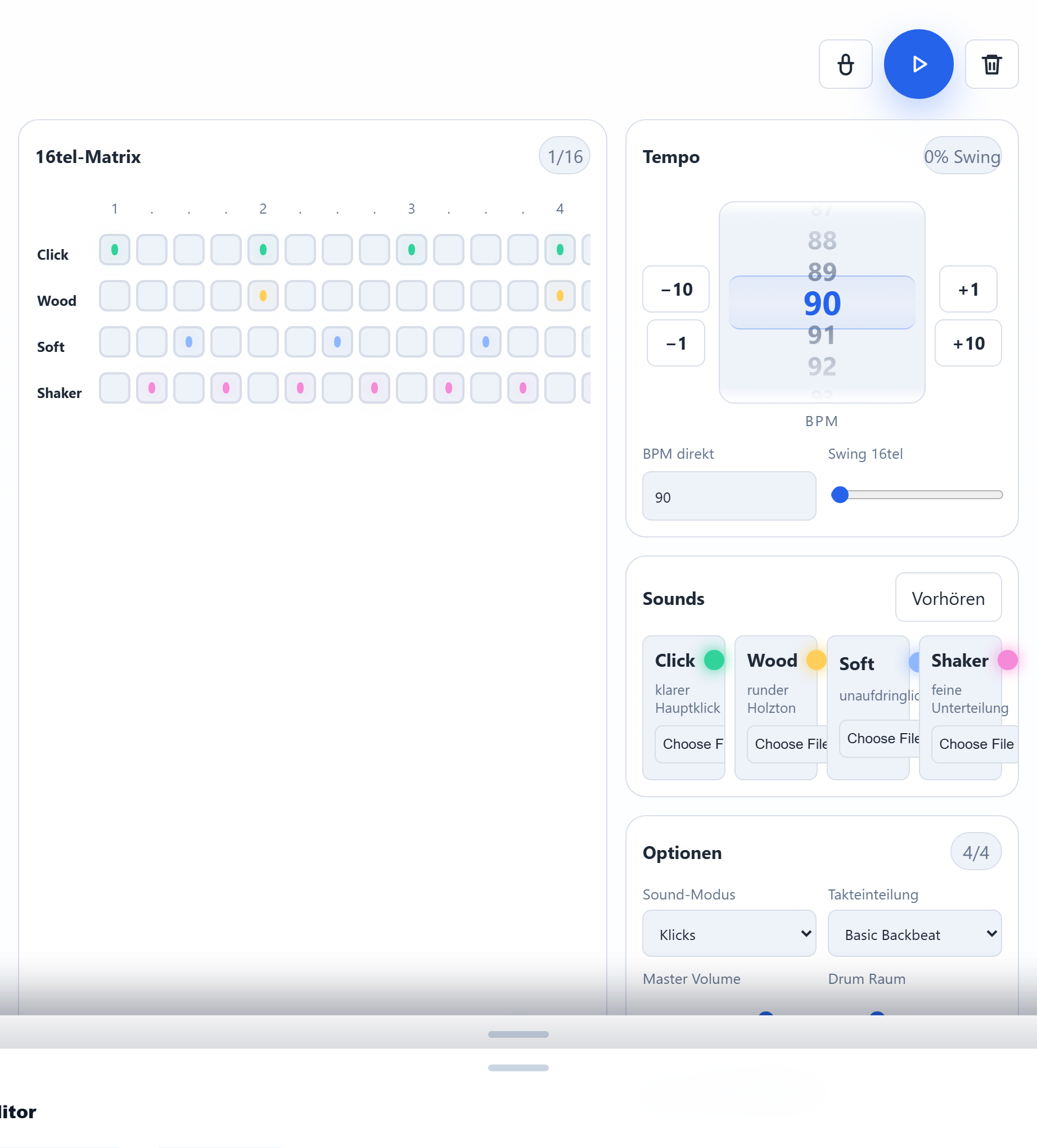
Grid and embellishments travel with the song export; the mixer settings deliberately stay a device preference. Play always loops the grid — the current bar is highlighted.
7 · eScalator — scale reference & transitions
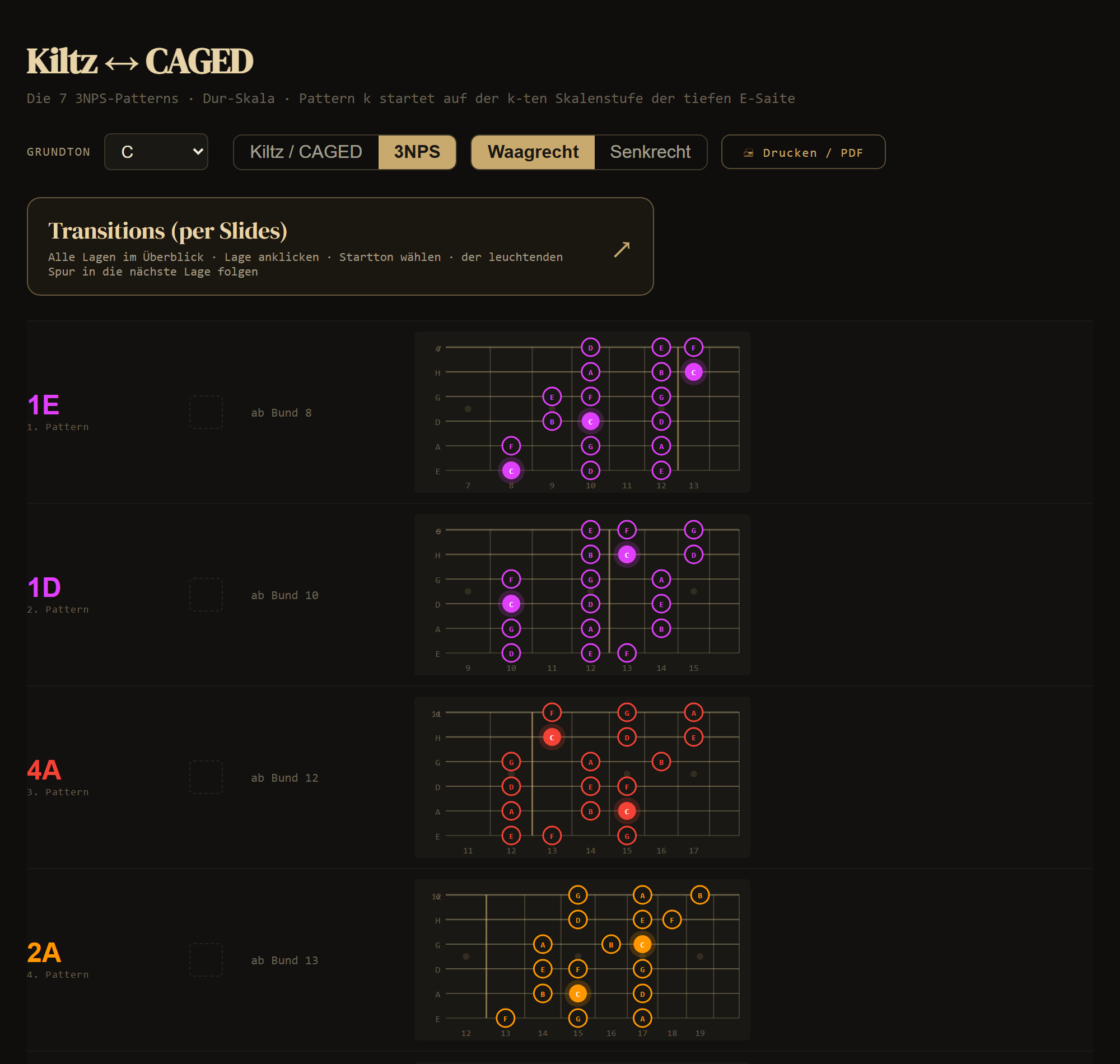
The eScalator is the printable reference of all seven positions of the major scale — per root, in the Kiltz finger-string system with CAGED mapping plus the 3NPS borrowed positions.
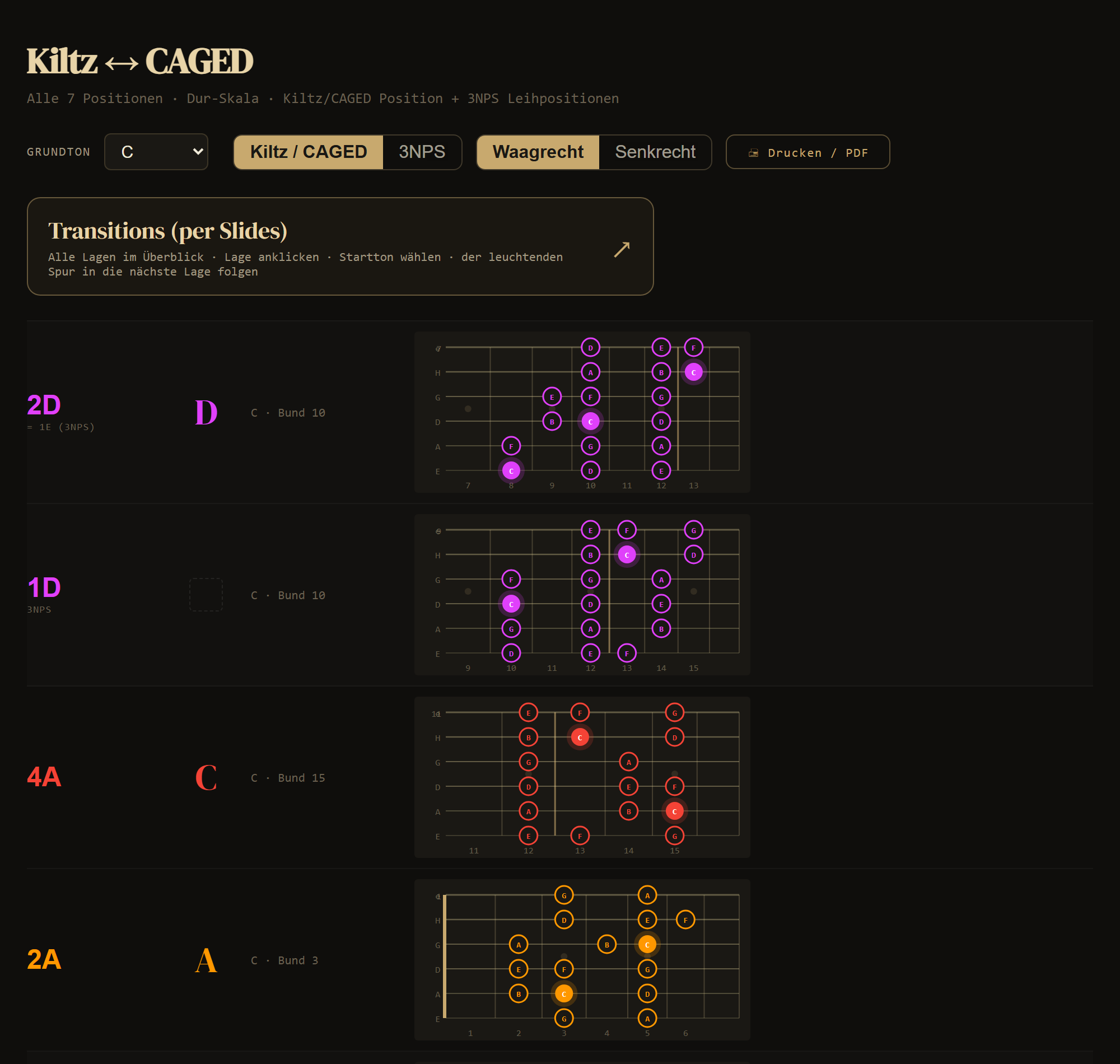
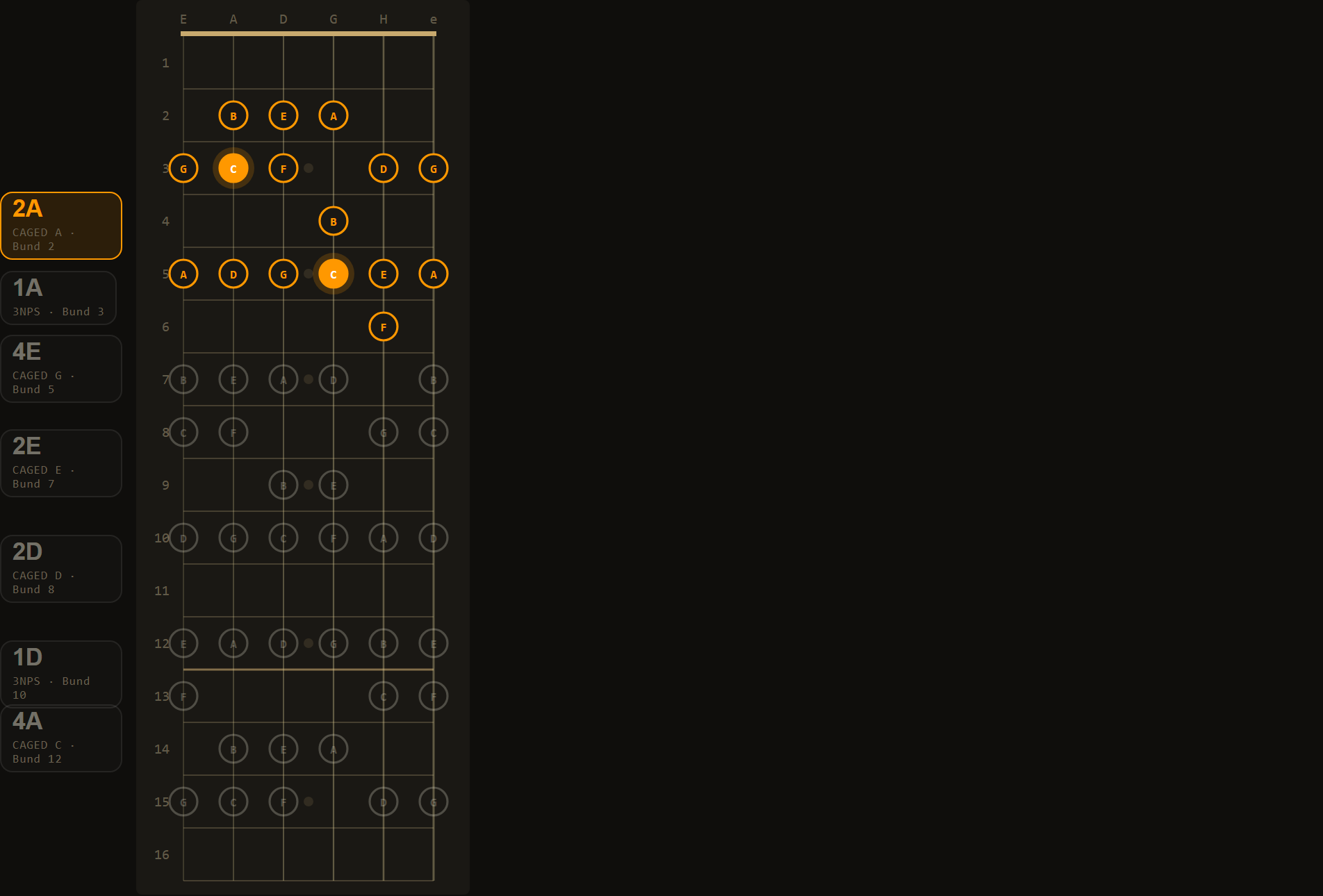
- Kiltz / CAGED ↔ 3NPS: switch between the box positions and the seven 3-notes-per-string patterns.
- Horizontal ↔ Vertical: every view in two orientations — classic rows or the vertical all-positions board. Your choice is remembered.
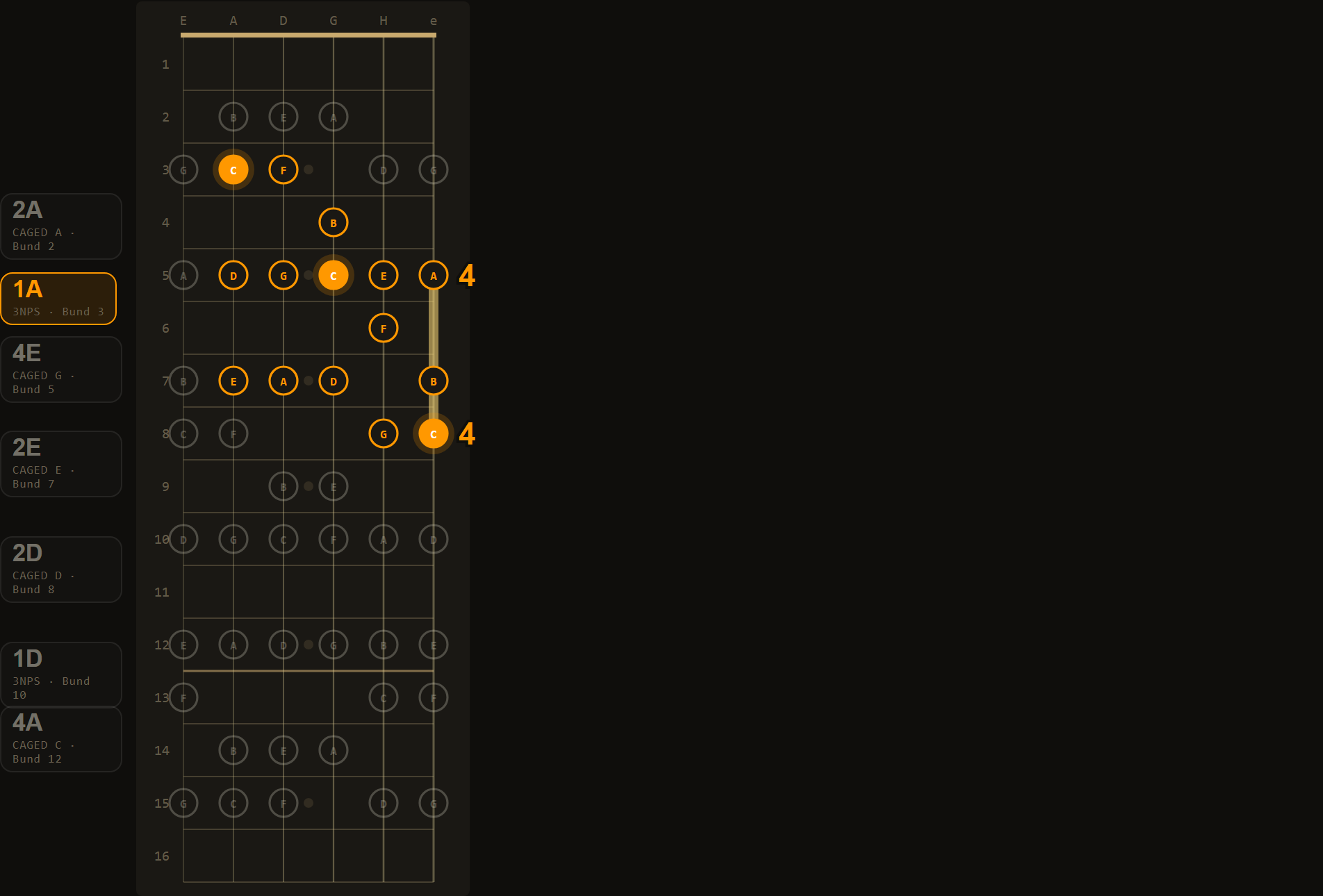
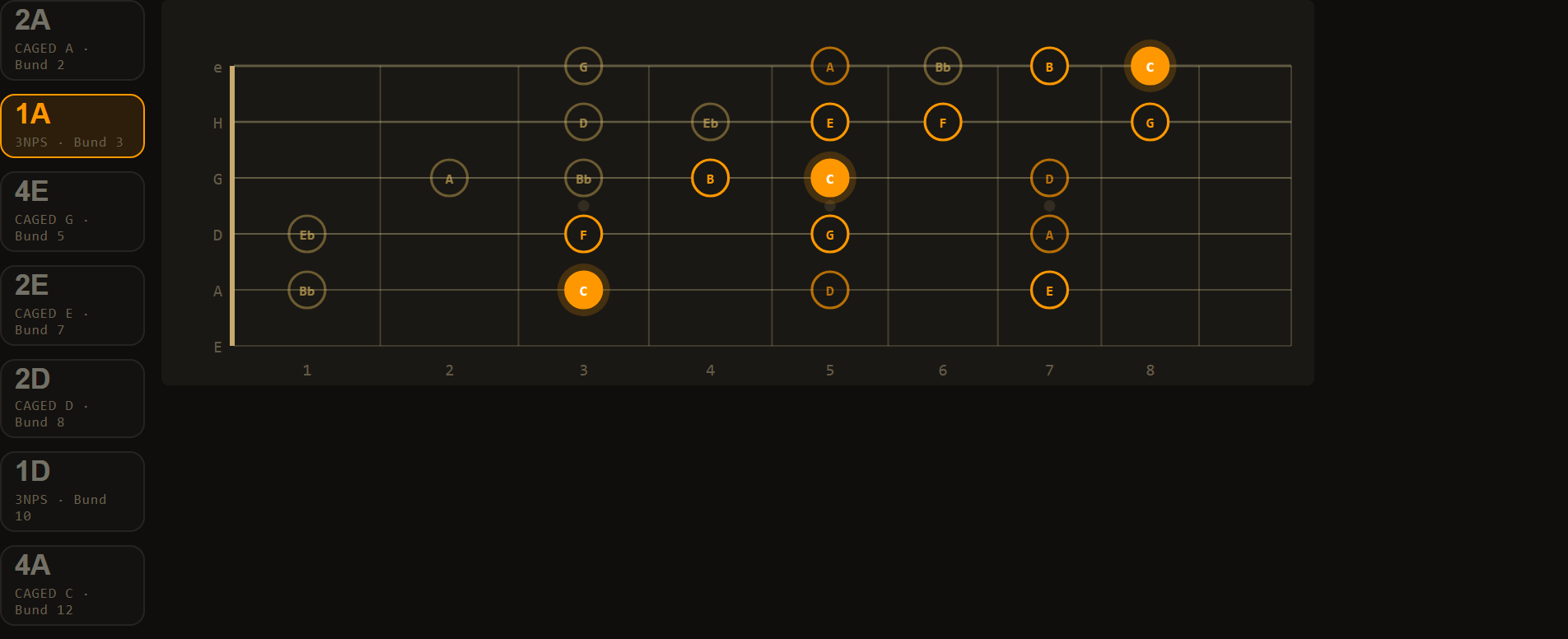
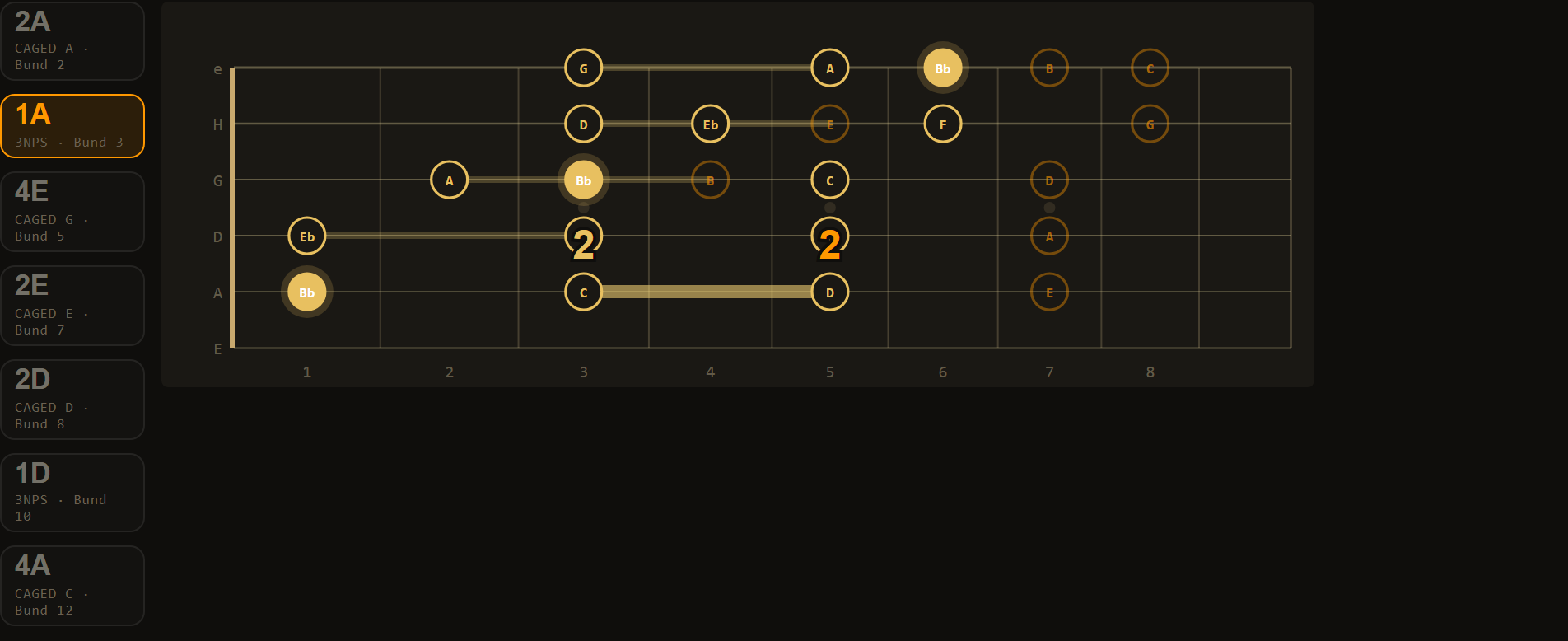
- Transitions: guided position changes — curated slides onto target notes in the hierarchy root → third → fifth → seventh, upward and downward. Arrived? Then you continue right from the new position.
- Printing: every view falls back to the classic reference boards in print colours.
The transitions view has two states: In-Scale-Slides (position changes within one key, as above) and Out-of-Scale-Slides — switching between scale families: the same shape slides as a whole by N frets into the target key (slide formula, e.g. "C → Bb = 2 frets down"). Only start notes blink whose landing is a chord tone of the target chord — same string, same finger, with finger digits at start and landing. From ModusCycler's Cheating view this state opens directly with the keys of your combination.
8 · modes·explorer — the mode course
The modes·explorer is the interactive course for the interim-scale method. You find it embedded on the website and in ModusCycler (section 3, per chord) — there it opens right away with the matching root and mode.
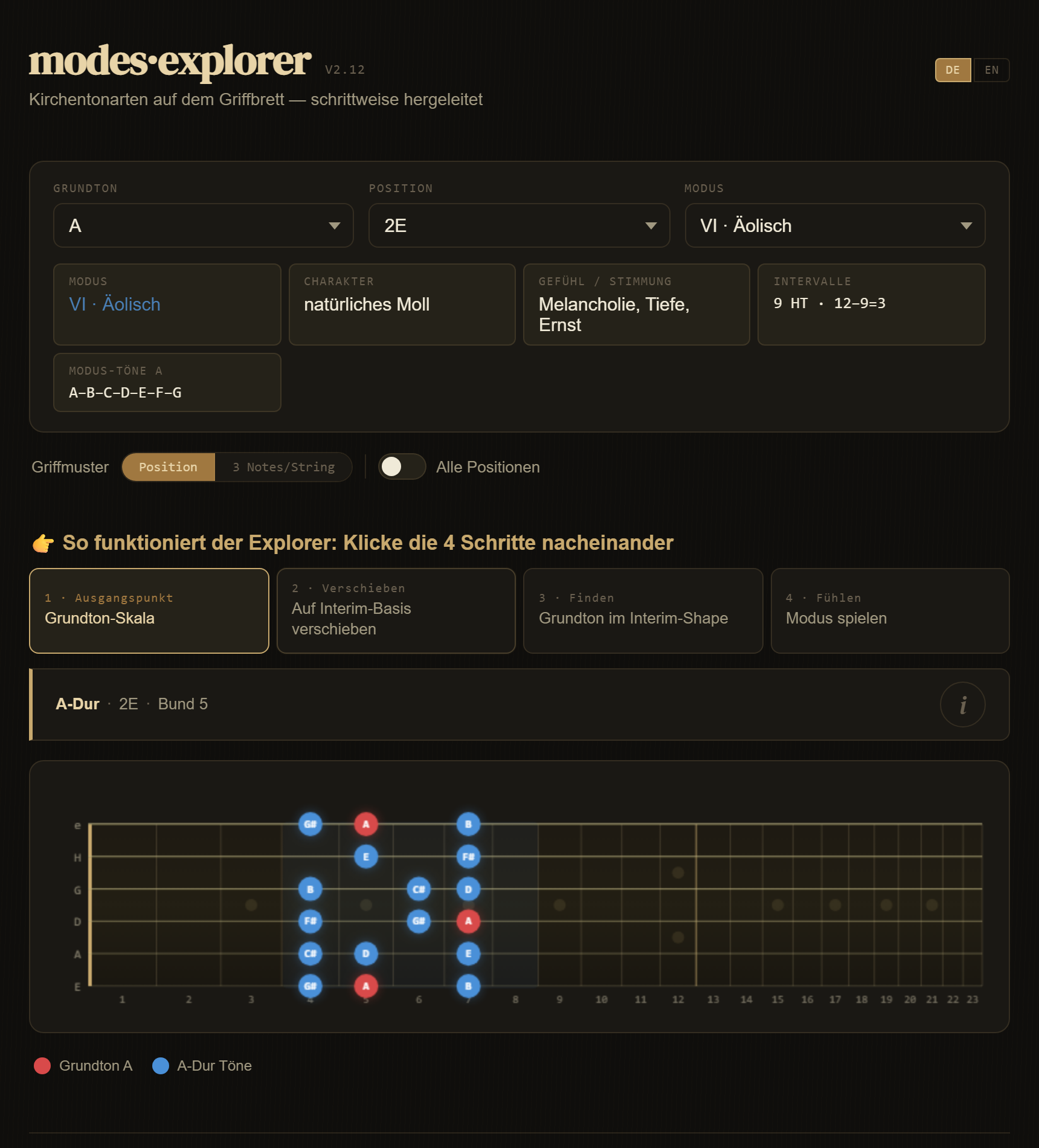
The core are the four steps you click one after another:
- 1 · Starting point: the major scale of your root in the chosen position.
- 2 · Shift: the scale moves to the interim base — you see the shift directly on the fretboard.
- 3 · Find: where does your root sit inside the interim shape?
- 4 · Feel: play the mode — with its character, mood and interval formula in mind.
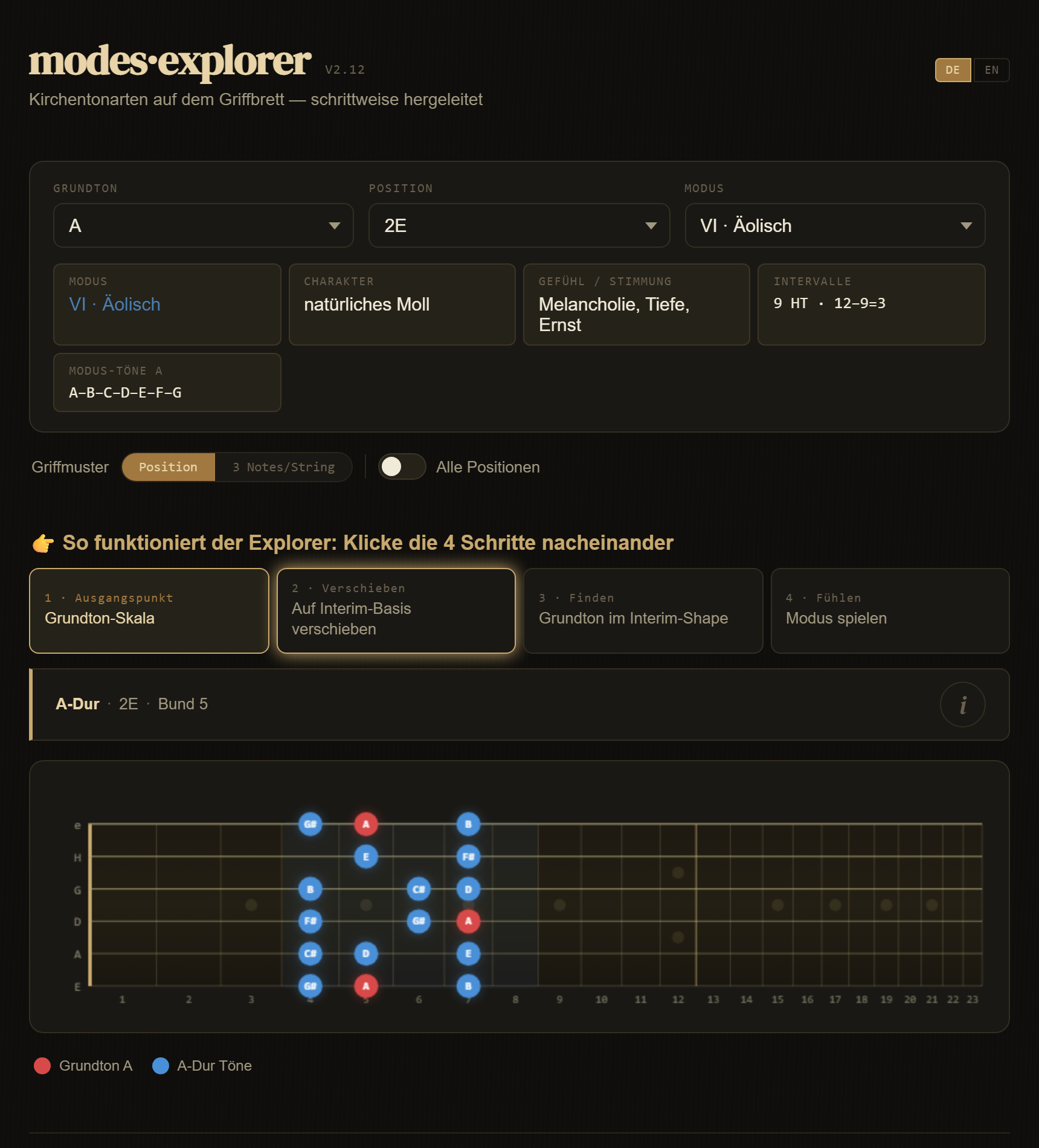
The free web version includes Lydian and Aeolian; the app version adds the remaining church modes plus further scales such as harmonic minor, Phrygian dominant or whole tone.
9 · Tips & troubleshooting
- No sound? Tap ▶ Play once (browsers only allow audio after a touch) and check that the iPhone's ring/silent switch is not on silent.
- Sound gone after the lock screen? The app detects this and repairs the audio engine automatically on wake-up — just press Play again if needed.
- Tempo: the app is the conductor. If you change the BPM in the sticky bar, the metronome follows — if you turn the tick's tempo wheel, the app adopts the value.
- Songs between devices: via Export as a .json file — importing works the same on PC and phone.
- Watch the tutorial again: restart it anytime via the ? in the sticky bar.
Questions, wishes, bug reports: contact details in the imprint.
As of July 2026 · www.moduscycler.com · app.moduscycler.com